How to Add Mods to a Hytale Dedicated Server
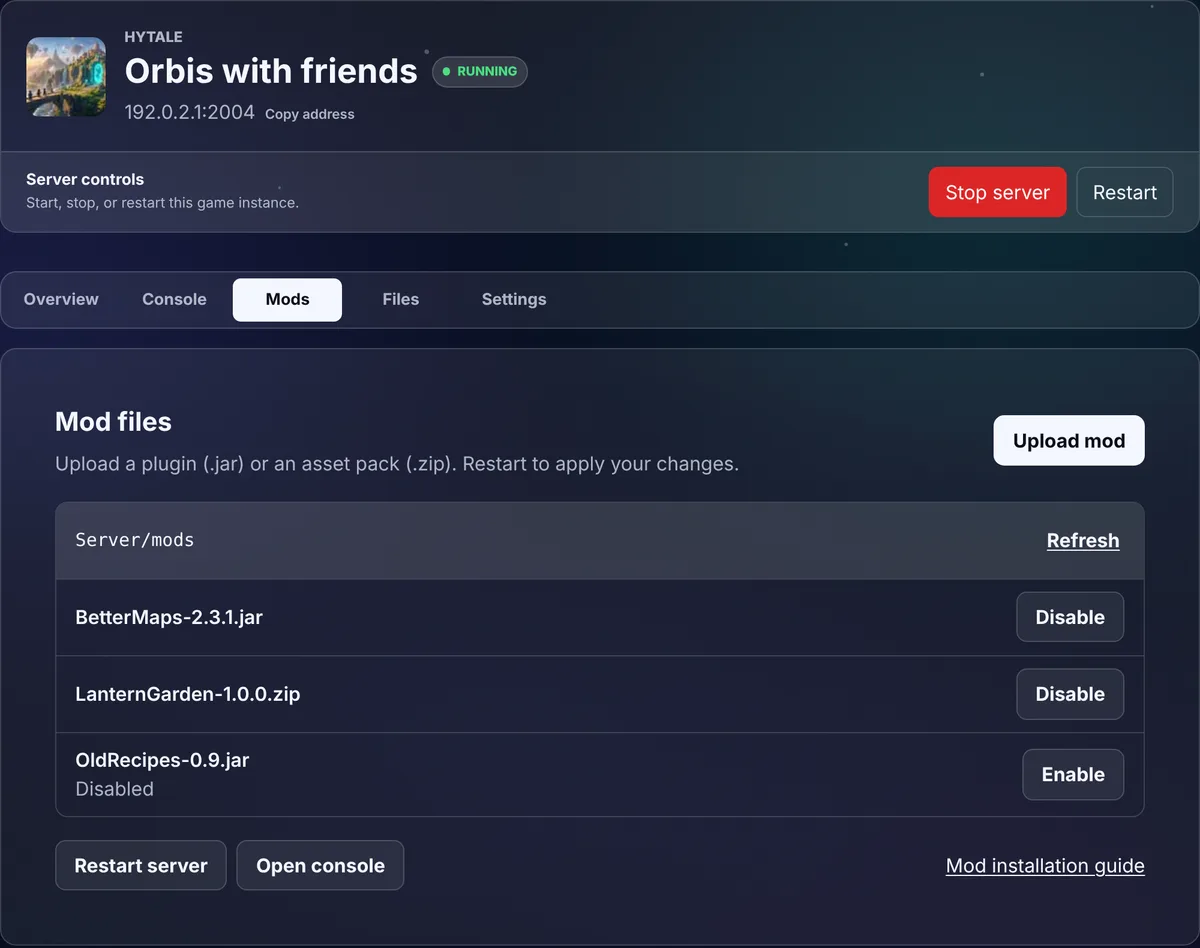
Open your server's Mods tab, choose Upload mod and select the author's plugin (.jar) or asset pack (.zip). Restart the server when your group is ready. Friends can join with their regular Hytale clients. The 48-hour trial includes the same Mods tab.

Choose a file for your server build
In Overview, choose Check version and read the installed build. On the author's project page, choose the file for that Hytale release and download any required dependencies. A plugin built for another version can fail at startup even if its filename looks right. You can find projects in the CurseForge Hytale catalog.
Install your first mod
- If you already play on this world, stop the server and keep a copy of the universe, configuration and current mods together. Follow the backup and restore guide for the files to keep.
- In Mods, select Upload mod and choose one file. Upload any required dependencies too. Files uploaded through SFTP to
Server/modsappear in the same list when you select Refresh. - Select Restart server. Once it is running, choose Open console. Enter
/plugin listto check a Java plugin. For an asset pack, look for the pack's name in the startup log. - Join the world and try a command, item or recipe the mod adds.
Load uploaded mods in Settings is on by default, so new uploads load on the next start. Some authors ship a mod switched off until you turn it on, and a setting for one specific mod always wins over this switch. If one mod is missing while the others work, check its project page for setup steps and read the startup log.
Update or disable a mod
A GHosting server update preserves uploaded mod files. Before changing versions, stop the server and keep a copy of the working mod set. Upload the new file. If it has the same name, choose Replace file. If the author changed the filename, choose Disable beside the old version so Hytale only loads one copy. Restart and check the console.
Disable keeps the file on disk and skips it on the next start. Choose Enable to use it again. Keep a world backup before disabling a mod that supplies items or blocks your players have already used.
If startup fails, read the first error naming a mod. Check its dependencies and supported build. If a change broke an established world, restore the previous mod set and its matching world backup. Test removal of mods that add blocks, items or creatures on a copy first.
Hytale documents the supported file types in its server manual and explains what players need in its asset pack guide.
Find more help in the Hytale server guides or try your mods on a Hytale server.