Project Zomboid Mods: WorkshopItems vs Mods Explained
Project Zomboid mods have two names, and confusing them is the classic reason a dedicated server starts happily but none of the new content appears in-game. The short version is simple: WorkshopItems downloads the files; Mods loads the mod inside those files. A working server normally needs both.
The two lists do different jobs
On a self-hosted dedicated server, the relevant lines live in your server's configuration file, commonly servertest.ini. They are semicolon-separated lists:
- WorkshopItems= contains numeric Steam Workshop item IDs. It tells the server which Workshop pages to fetch before starting.
- Mods= contains the mod's internal id= value. It tells Project Zomboid which of the downloaded mods to enable in the world.
A Workshop item ID is the long number in a mod's Steam URL. A Mod ID is not usually in that URL. It is a text value inside the downloaded mod's mod.info file. Copy that id= value exactly as written into the Mods list. The two values can look completely unrelated, which is why copying the Workshop number into both fields does not work.
A worked example
Imagine a Workshop item whose URL ends in ?id=1234567890. That is the item to download. Inside it, the author may ship a mod with id=ExampleMod. The configuration would look like this:
WorkshopItems=1234567890
Mods=ExampleMod
On the next restart, the server downloads item 1234567890, finds the mod named ExampleMod, and enables it. Players joining through Steam are then prompted to download the same Workshop item if they need it.
Why one Workshop item can need several Mod IDs
Steam Workshop is a delivery system, not a one-mod-per-page rule. An author can put several independently loadable mods in one item: a main mod, a compatibility patch, and an optional add-on, for example. That means one Workshop ID can correspond to several entries in Mods=.
This is also why guessing from the Workshop title is unreliable. Open the item's files and look for each mod.info file; every id= value you want enabled belongs in the Mods list. Read the mod's Workshop description too: authors normally state which pieces are required and which are optional.
The map-mod exception
Maps still need their Workshop ID and Mod ID, but they have one more moving part: the map's folder needs to be present in the server's Map= setting, usually ahead of the base map entry. If a map mod is missing from Map, the server can download it and still not make its cells available to the world. Follow the map author's load-order instructions, especially on an existing save.
Be cautious when changing maps mid-campaign. Adding one is usually safer than removing or reordering one after players have explored it, because the saved world already refers to those map cells.
A quick troubleshooting order
- It downloaded but is not active: check that the exact id= from mod.info is in Mods=.
- The server cannot find the mod: check that its numeric Workshop ID is in WorkshopItems= and that the item is available to the Steam account branch your server uses.
- Players cannot join after an update: restart the server to refresh Workshop content, then make sure clients have allowed Steam to update too.
- A map does not appear: verify its folder and load order in Map=, not just WorkshopItems and Mods.
Let the server do the lookup
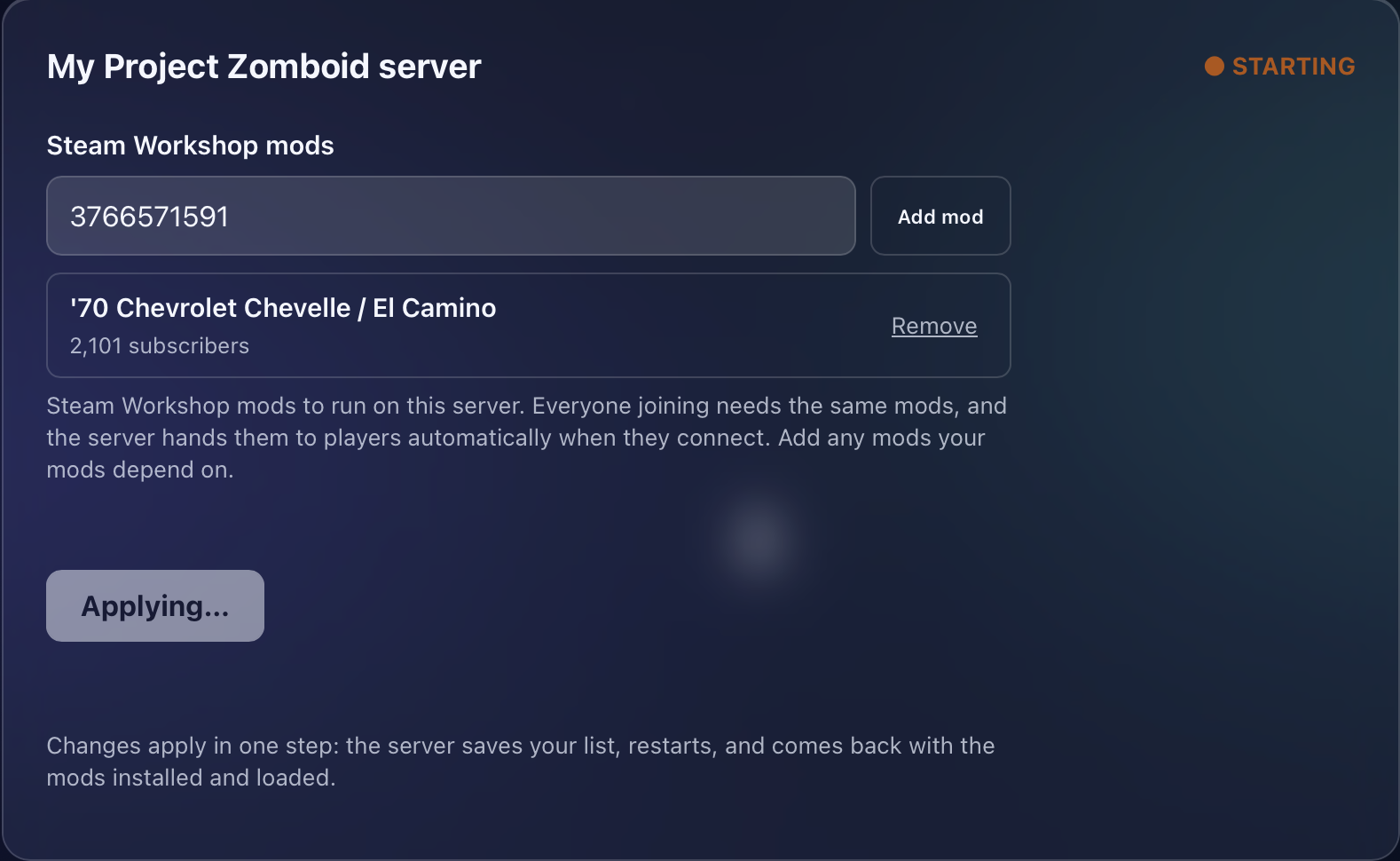
There is no fun in spelunking through Workshop folders when you would rather be planning a base. On GHosting, open a Project Zomboid server's Mods tab, paste a Workshop link, and press Save and restart. We validate the item with Steam, read its internal Mod IDs, write both configuration lists, and refresh the downloaded files as part of the restart. One Workshop item with several mods is handled as several Mod IDs automatically.
For the bigger picture, read our guide to hosting a Project Zomboid dedicated server, or start a Project Zomboid server when you are ready to give your group a world that stays online.