How to Add Mods to a tModLoader Server
Vanilla Terraria is a classic. Modded Terraria is a different game entirely: Calamity alone adds 27 bosses and two thousand items, and it sits on a Steam Workshop with tens of thousands of mods next to it. All of that runs through tModLoader, the free mod loader that ships as its own app on Steam.
Getting mods onto your own client is easy: you hit subscribe and tModLoader does the rest. Getting them onto a dedicated server is where most people lose an evening. Here is how it actually works, and how we made it a thirty second job.
How a tModLoader server loads mods
Three things have to line up before a modded server boots:
- The mod files. Every mod is a single .tmod file. Mods from the Steam Workshop live in a workshop folder organised by numeric item ID (Calamity is 2824688072), with one subfolder per tModLoader release the author still supports.
- enabled.json. Having the files is not enough. The server reads a little JSON list of mod names from its Mods folder and loads exactly those. A mod that is downloaded but not listed simply does not exist as far as the game is concerned.
- Matching versions. Your players' clients update mods automatically through Steam. The server does not update itself, and tModLoader refuses connections when versions drift apart. Somebody has to keep the server current.
The manual way
On a self-hosted box, the usual route is Valve's SteamCMD command line tool. You look up each mod's Workshop ID in your browser, then ask SteamCMD to download it into the server's workshop folder:
steamcmd +force_install_dir /srv/tml +login anonymous +workshop_download_item 1281930 2824688072 +quit
Then you write the enabled.json yourself, with each mod's internal name spelled exactly like its .tmod file. Then you point the server at the workshop folder with the right launch flag, restart, and read the log to see what broke. When a mod updates a week later, you do the download step again. It works, but it is nobody's idea of fun, and it is the number one support topic for modded Terraria servers everywhere.
The GHosting way: paste a link, one click
Every tModLoader server on GHosting has a Mods tab on its dashboard. Find a mod you like on the tModLoader Workshop, copy the page link, and paste it in:
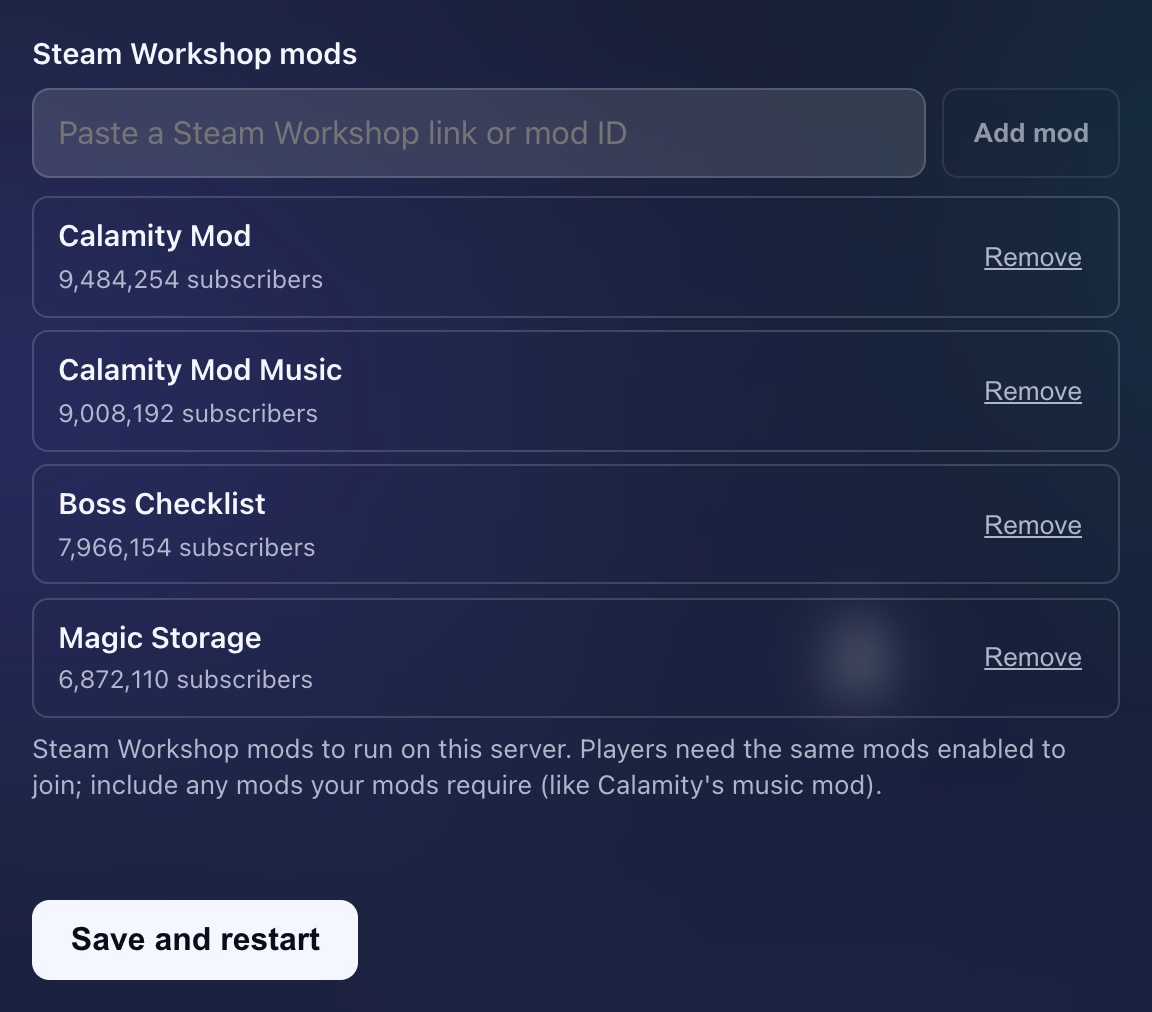
We verify the link against Steam on the spot and show the mod's real name and subscriber count, so you know you grabbed the right one before it ever touches your server. Bare item IDs work too, if you would rather type 2824688072 than paste a URL.
When your list looks right, hit Save and restart. That one click saves the list, restarts the server, downloads every mod from the Workshop, writes the enabled.json for you, and boots with the mods loaded. There is no separate save step to forget: your mod list and your running server never disagree. The same restart also does the housekeeping you would otherwise be doing by hand:
- Updates. Each restart refreshes your mods to their current Workshop versions, so the server keeps up with your players' auto-updating clients.
- Removals. Take a mod off the list and its files are cleaned off the disk on the next restart, not just disabled.
- Custom mods. Running something that is not on the Workshop? Drop the .tmod file into data/Mods through the Files tab and it loads alongside the Workshop mods.
Three tips before you go wild
- Include dependencies. Some mods require others to run. Calamity famously requires its separate music mod, so add both. The server tells you in the console log when something is missing.
- Everyone runs the same list. Players need the same mods enabled on their clients to join. Easiest routine: one person maintains the server list, and everyone subscribes to the same mods in-game.
- Big packs want RAM. A handful of quality-of-life mods runs fine on 2 GB. Calamity with music and friends is happier with 4 GB or more, and worlds get bigger with content mods too.
That is genuinely all there is to it now. If you want to test the whole flow before paying, start with our 48-hour Terraria server trial. It includes tModLoader support with no card and no automatic renewal, subject to available trial capacity. Pick the tModLoader variant, paste your mod list, click Save and restart, play.